use this template
This procedure shows template users how to use the Microsoft Word template, shown in Word Templates with Word for Mac.
The key to using this template is two-fold:
- Always use the template Styles to format content; and
- If copy/pasting text from an external source (i.e., another document),
always paste as plain text (also sometimes referred to as
Keep Text Only
).Attention: Copying and pasting content (without pasting as text only) from another document can cause serious formatting conflicts in the document because new styles may be introduced to the existing template style set.Word for Windows has a capability to lock the styles (Mac does not) but is that really enough of a reason to switch to Windows?!
Use this template to format regular, paragraph text
- Place cursor in desired area for regular, paragraph text.
- From the Microsoft Word Home tab, click .
- Type or paste text with
Keep Text Only
option.Remember: After text is entered, highlight the text and navigate to the Styles pane to verify that the Para Txt style is applied—the applied style will have a bold highlight around it.
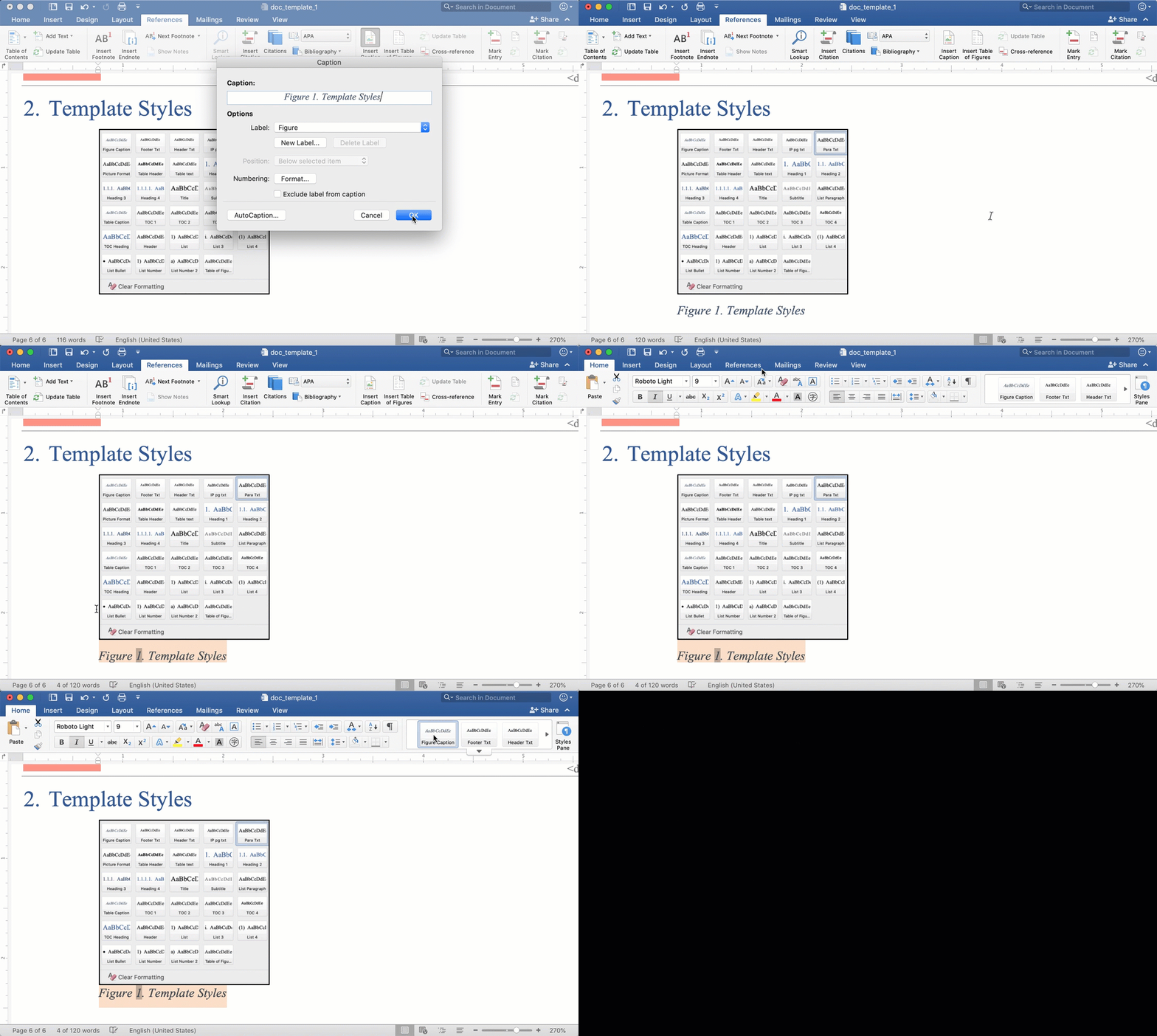
Use this template to format figure captions
- After generating a figure caption, highlight the caption.
-
From the Microsoft Word Home tab, click
Figure Caption.